Post Publication Review / Post Publication Scrutiny application
Step 1
Go to the URL: https://www.wbbsedata.com to access the Post Publication Review / Post Publication Scrutiny application portal.
Step 2
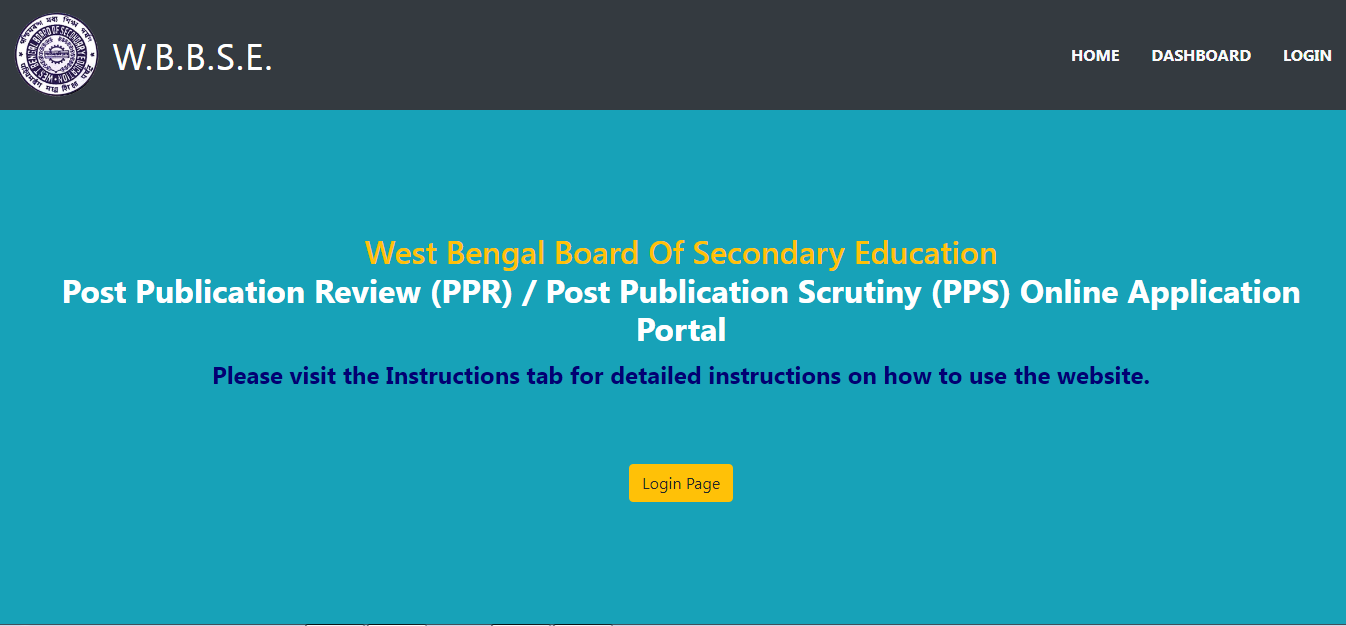
Once you get the Home page, click on the Login Page to login into your school dashboard.
Step 3
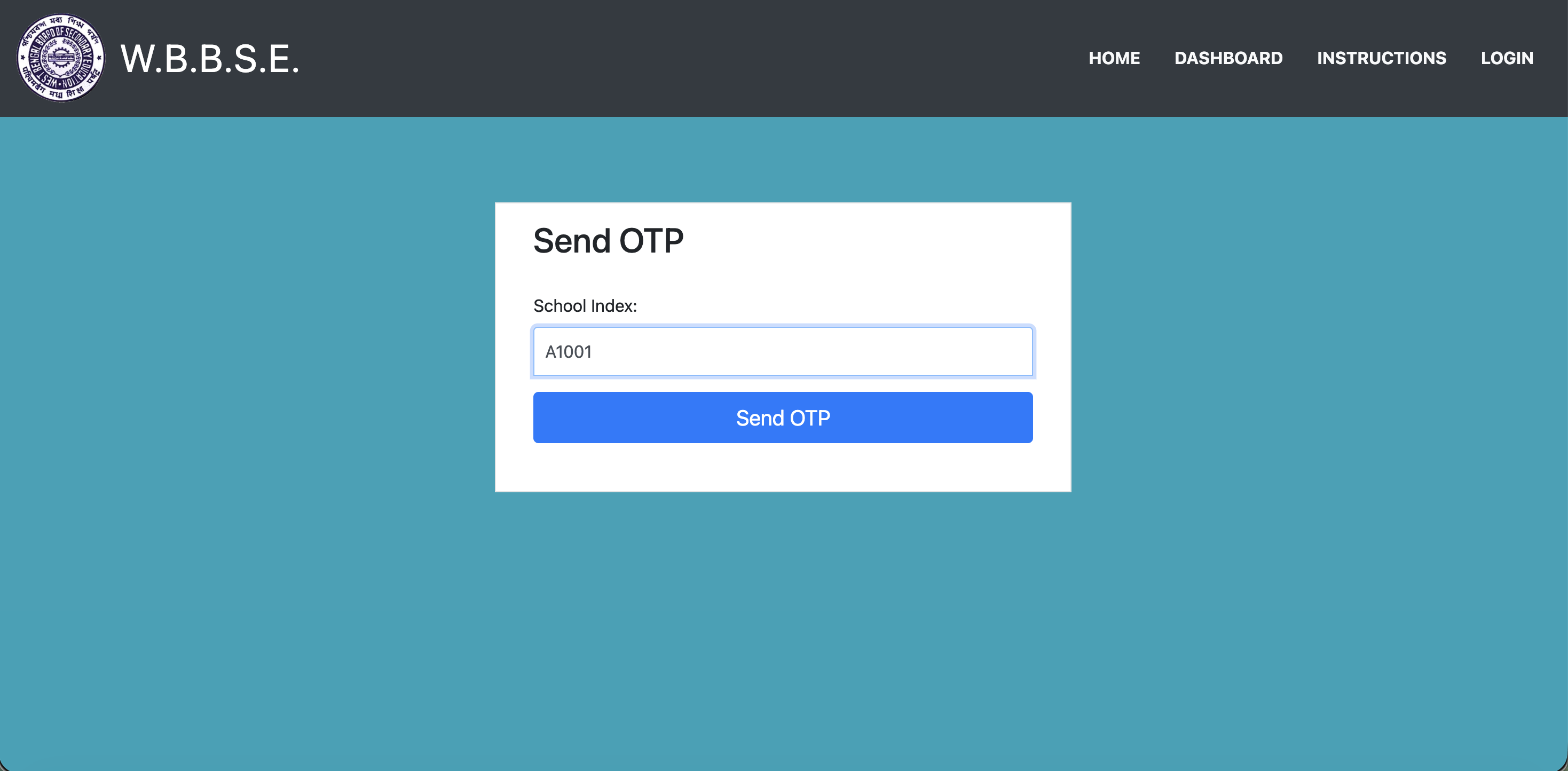
On this page, in the username field please enter your school Index where the alpha would be in capital letter and the index would be without any hyphen or spaces. (for example - “D3014”).
Step 4
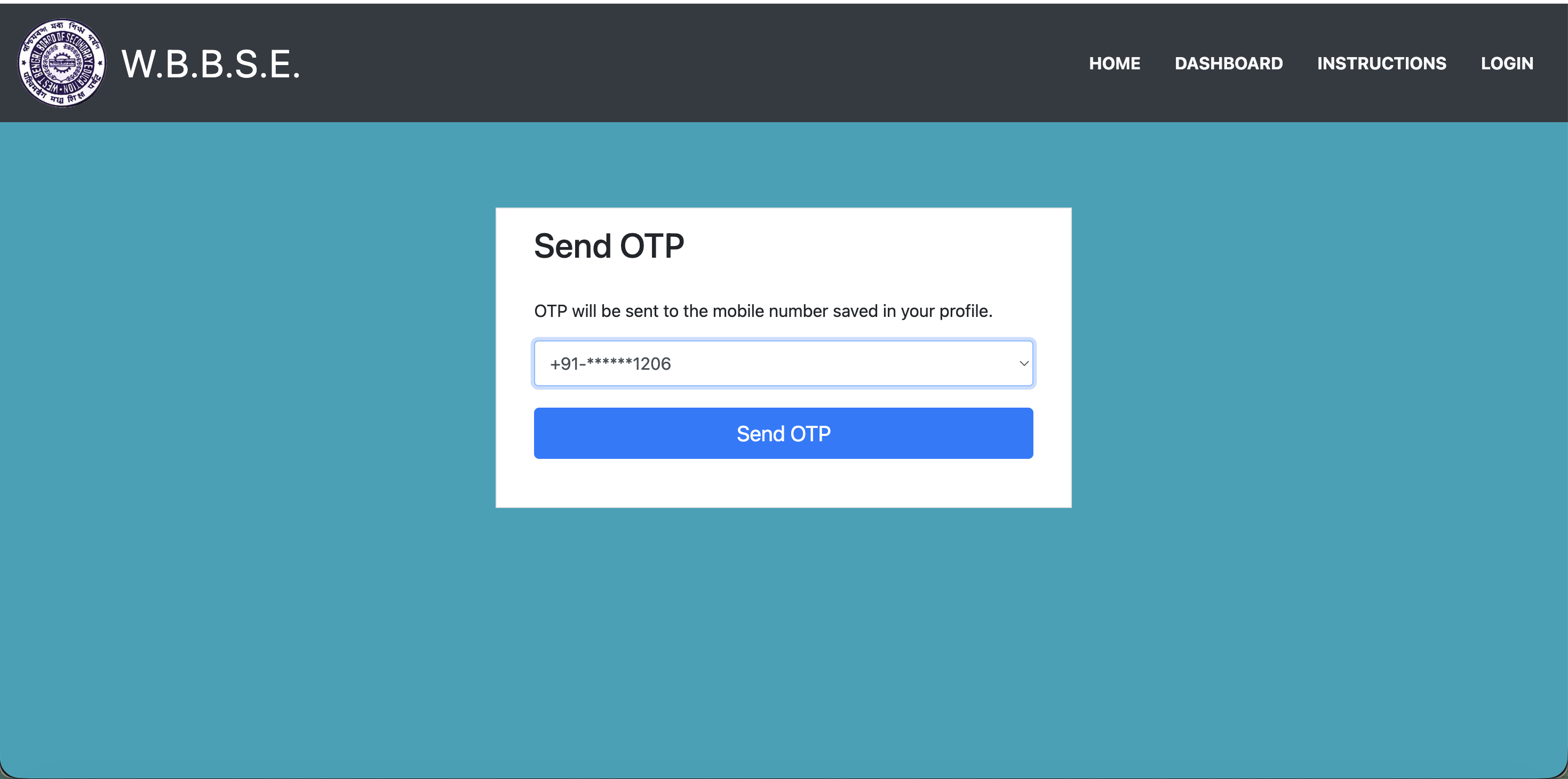
After entering the correct login details, the Send OTP page opens. The OTP will be sent to the mobile number saved in your school profile. Select the displayed mobile number and click on the Send OTP button.
Step 5
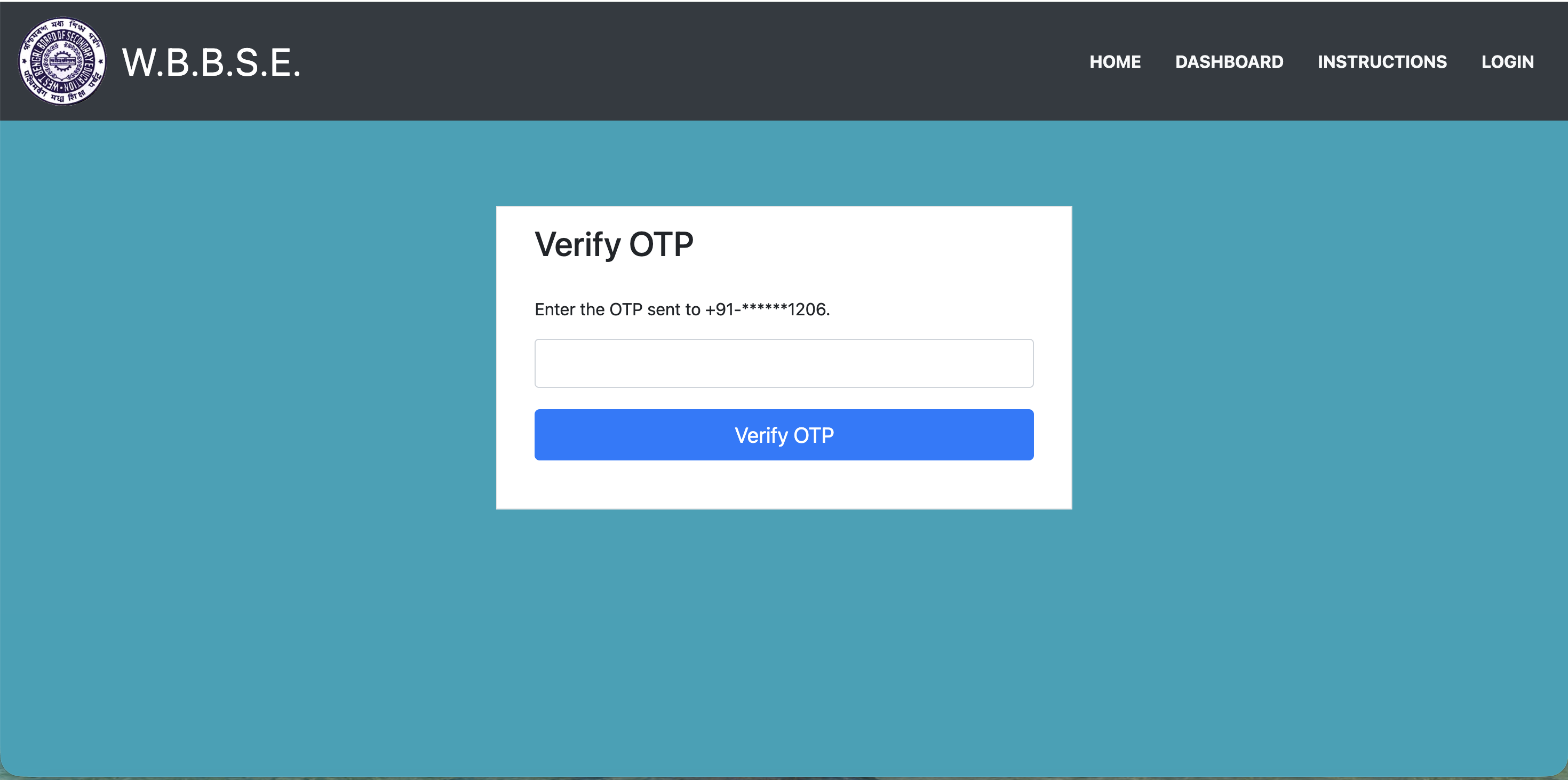
Enter the OTP received on the registered mobile number and click on the Verify OTP button. After successful verification, you will be redirected to your school dashboard.
Step 6
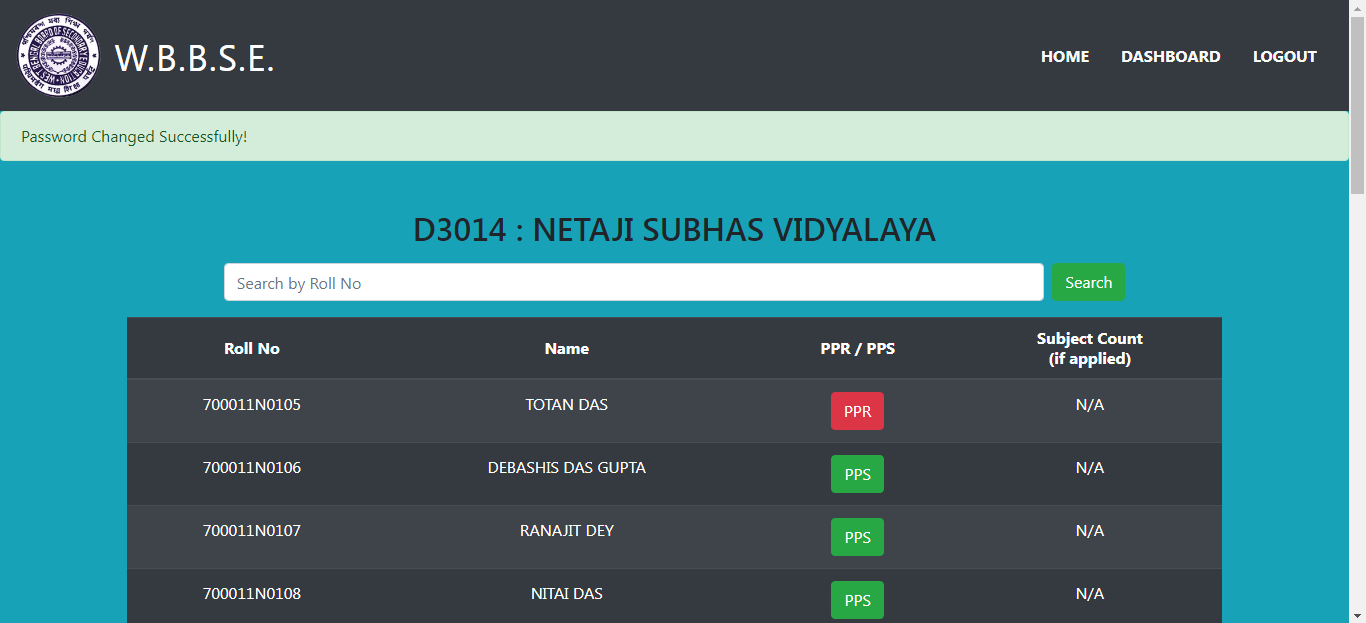
The dashboard shows a list of candidates of your school who have appeared for MP(SE)'2026 with their roll numbers and name and if they have passed then a PPS button is shown else a PPR button is shown. On clicking the PPR/PPS button the detailed page of the candidate opens up for subject selection.
The candidates can be searched through the search bar given on top by entering the rollno where the “N” in the rollno number would be in capital and the entire roll number would be without any spaces or any special characters.
Step 7
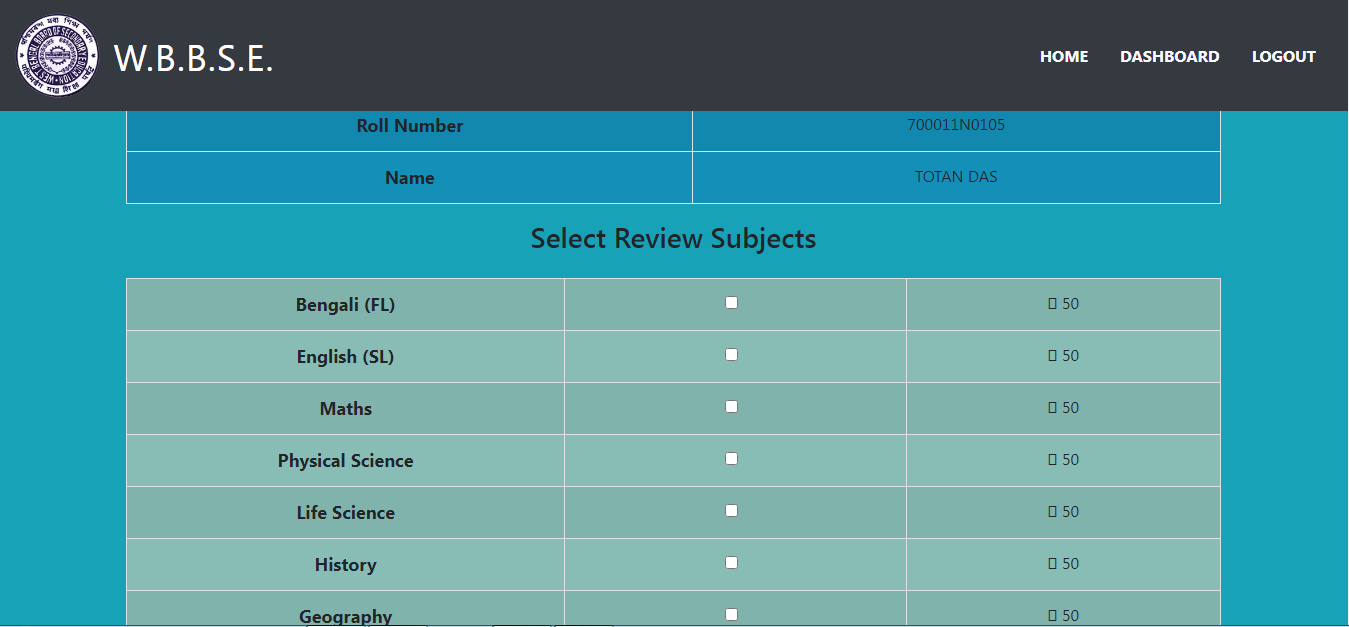
Now as stated above on clicking the PPR/PPS button the student detail page opens up.
Here to select the subject, you have to click on the check boxes corresponding to the subject, and a tick mark appears on clicking. If by mistake a wrong subject has been selected, then by clicking again on the check box the tick mark goes off.
After selecting the subjects, click on the "Submit" button.
Step 8
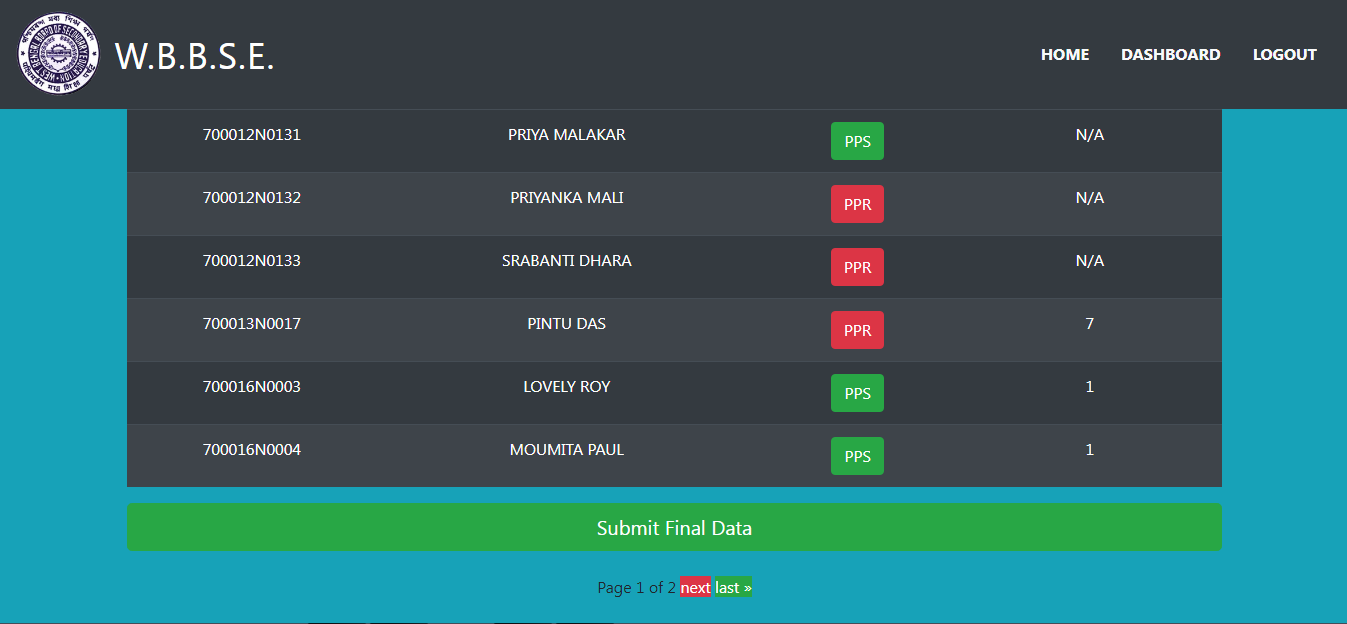
After all the PPR/PPS applications are made for the required candidates, click on the submit final data button at the bottom of the dashboard page.
On clicking the final submit button all the data would be locked and no further changes can be made. So recheck your data before the final submission.
On clicking the submit final data button , you are redirected to the school summary page.
Step 9
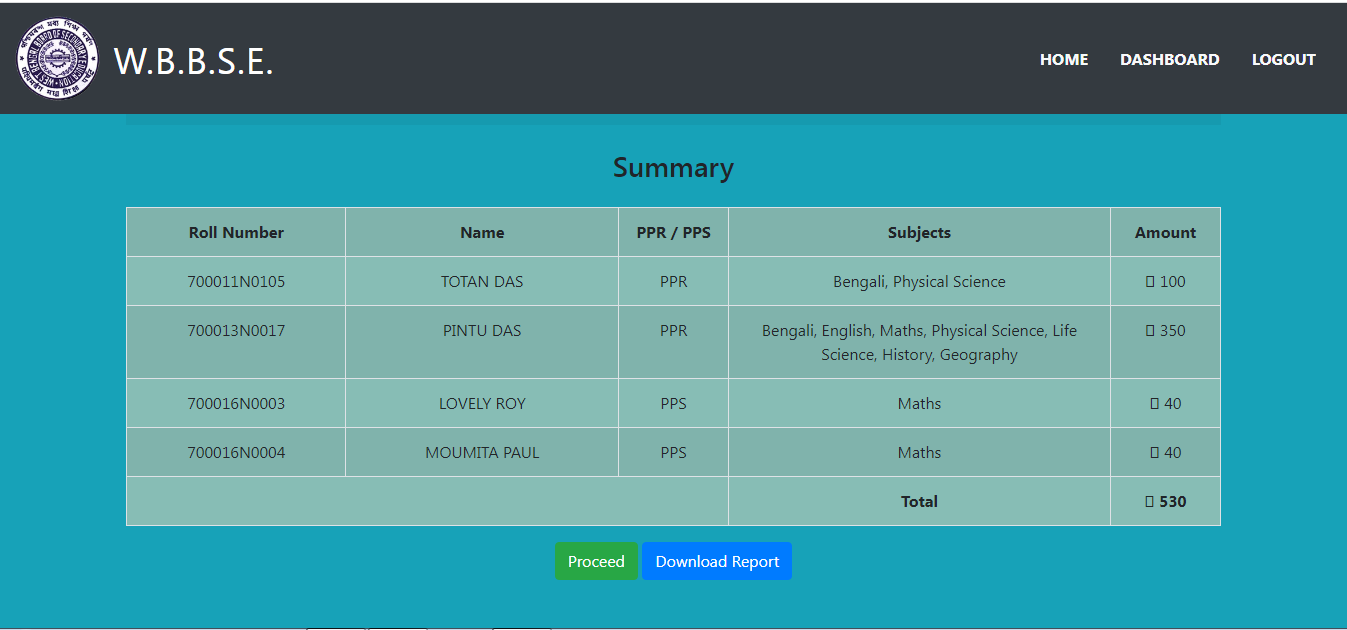
Here all the PPR/PPS applications are shown along with the amount. Below that you find a Download Report button. On clicking this a summarized report for the school is generated in a pdf for your record.
Now click on the "Proceed" button to download challan.
Step 10
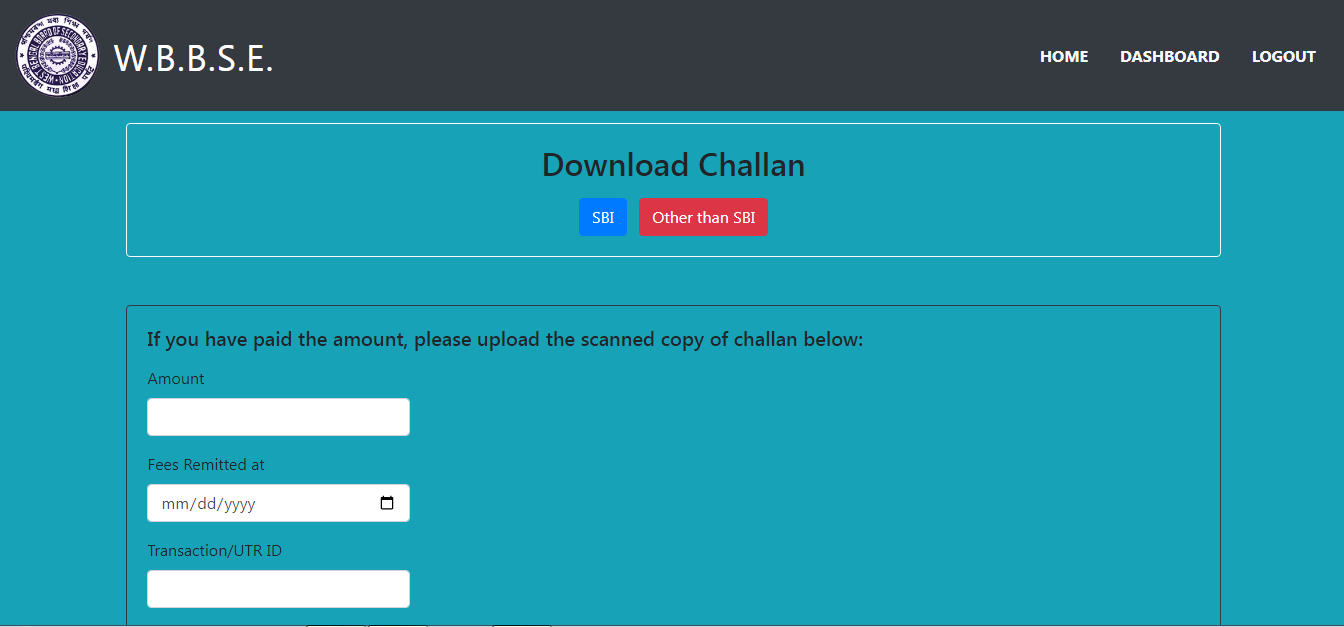
Here at the top of the page there is a section to download PPR/PPS Apllication fees payment challan. Out of the two buttons, One is "SBI", if you want to deposit fees in any SBI branch and second is "Other than SBI" if you want to deposit fees in any bank other than SBI. On clicking the button a corrsponding challan is downloaded. Print the challan and deposit the fees in a bank of your choice.
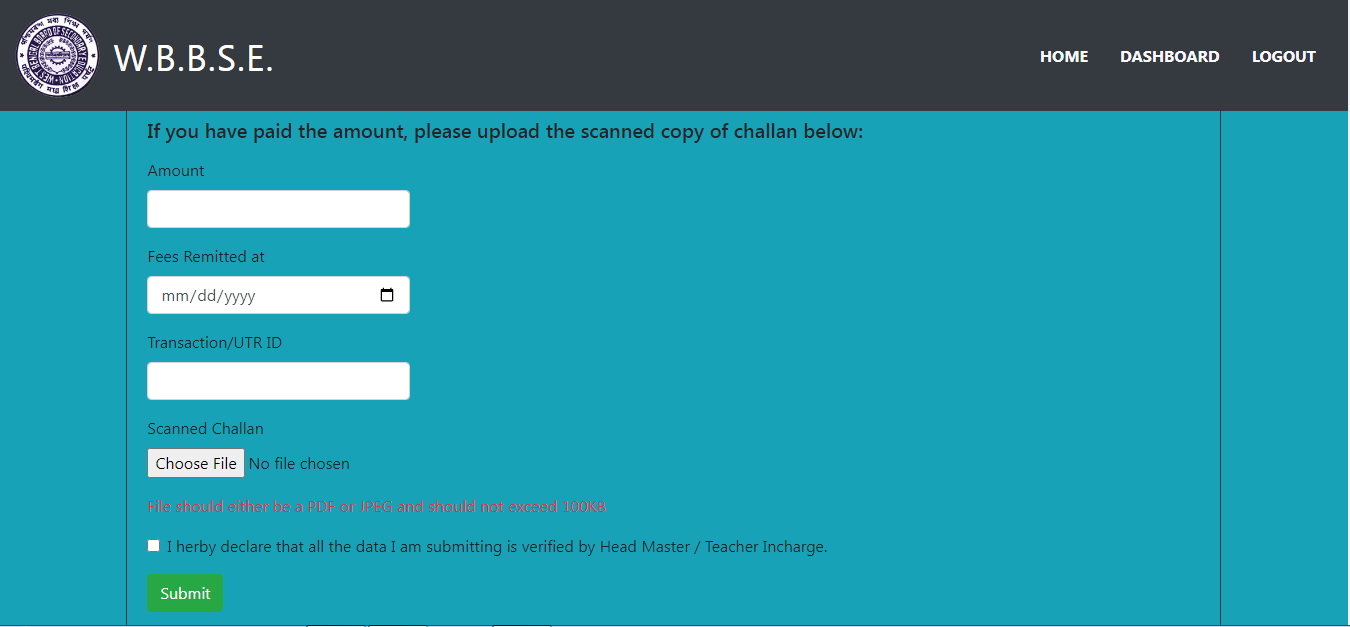
After the deposit is made, scan the "Stamped Challan" in PDF or JPEG format and the size of the file should not be more than 200KB.
Step 11
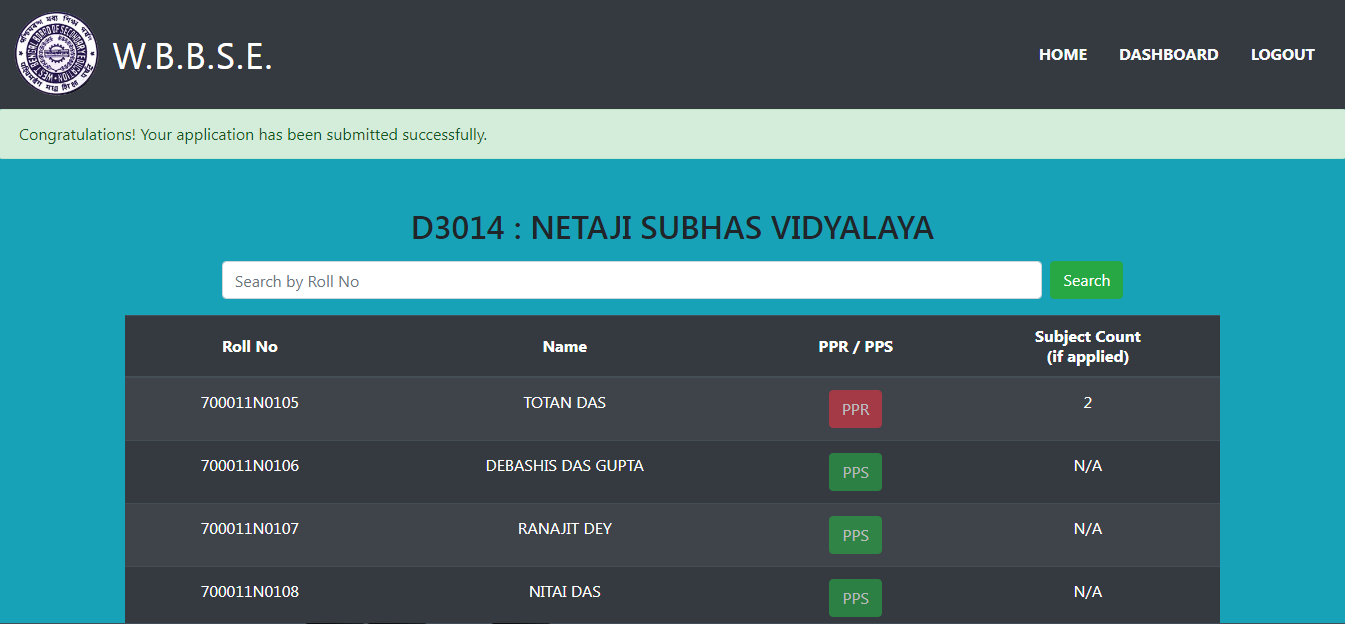
Once you are ready with the scanned challan, in the lower section on the same page enter the Deposited Amount, Date of deposit, and the correct Transaction / UTR ID provided by the bank, select the scanned copy of the challan to be uploaded by clicking the Choose File button. Now click on the checkbox below and press the submit button. Once you press this submit button, your final submission is completed and you are redirected to the dashboard which shows a success message.
Step 12
N.B. once the summary of the school is generated, the data cannot be changed any further. No more changes are allowed.
Special Instructions
- No Application would be accepted after 22nd May, 2026.
- Without proper uploaded challan and the transaction id, the application for the school would not be accepted.